Menu
The three-line button near the right of the header opens the menu.
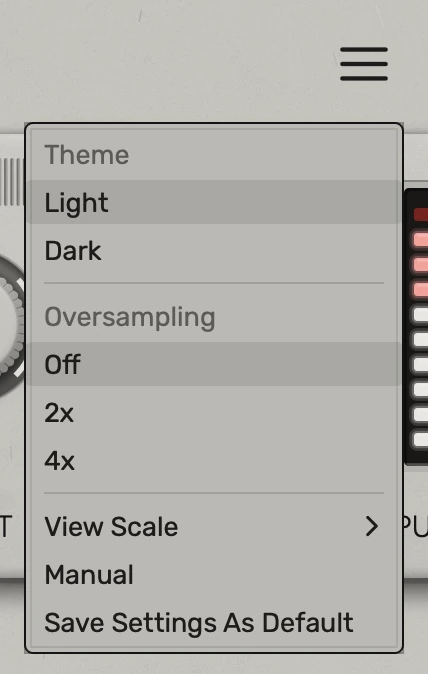
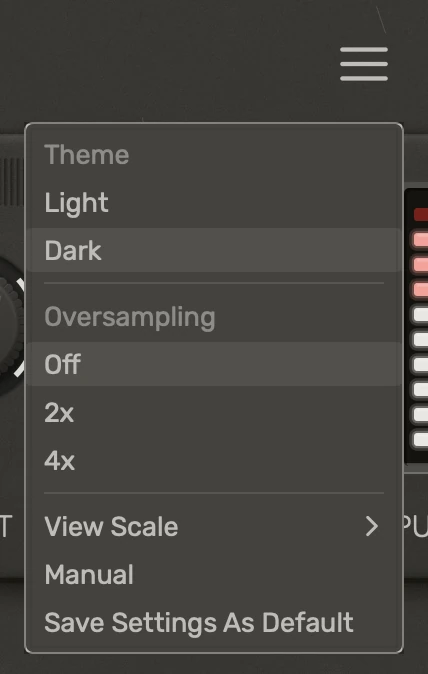
| Item | What it does |
|---|---|
| Theme | Switches the interface between Light (the default) and Dark. |
| Oversampling | Reduces aliasing when the preamp is driven hard: Off (the default), 2x or 4x. See Oversampling. |
| View Scale | Sets the size of the editor, from 50% to 150%. |
| Manual | Opens this manual in your browser. |
| Save Settings As Default | Starts new instances of Preamble with the current theme, view scale and oversampling. |
Theme, view scale and oversampling are saved with your session. Presets don't change them, and they can't be automated. A saved session keeps its own settings, whatever the default is.
On iOS there's no View Scale, and the app and the AUv3 plugin each keep their own defaults.
Oversampling
Driving the preamp hard creates high harmonics. Any that go past the top of the model's range fold back down as aliasing: faint tones that aren't in tune with the note. 2x and 4x run the model at a higher rate and filter those harmonics out. All three settings use the same model, so the tone stays the same.
- Off suits most material. Guitar, bass and other darker sources make very little aliasing, even with Input pushed hard.
- 2x clears most of the aliasing from bright sounds driven hard, such as saw synths.
- 4x goes further, which shows most on loud, high test tones.
2x and 4x both add 0.8 ms of latency at any sample rate, which Preamble reports to your host so your tracks stay in time. 2x uses a little over twice the CPU of Off, and 4x between four and five times.
The model always runs at 48 kHz internally, so raising your session's sample rate won't reduce aliasing. At 44.1 kHz, 2x and 4x are closer together.
You can change the setting while audio is playing: the output dips for a moment as it switches.