Presets
Buckets ships with factory presets, and you can save your own alongside them. Everything happens from the preset strip in the header: the arrows step through presets, the preset name opens the preset browser, and the save and delete buttons manage your own presets.
Browsing presets
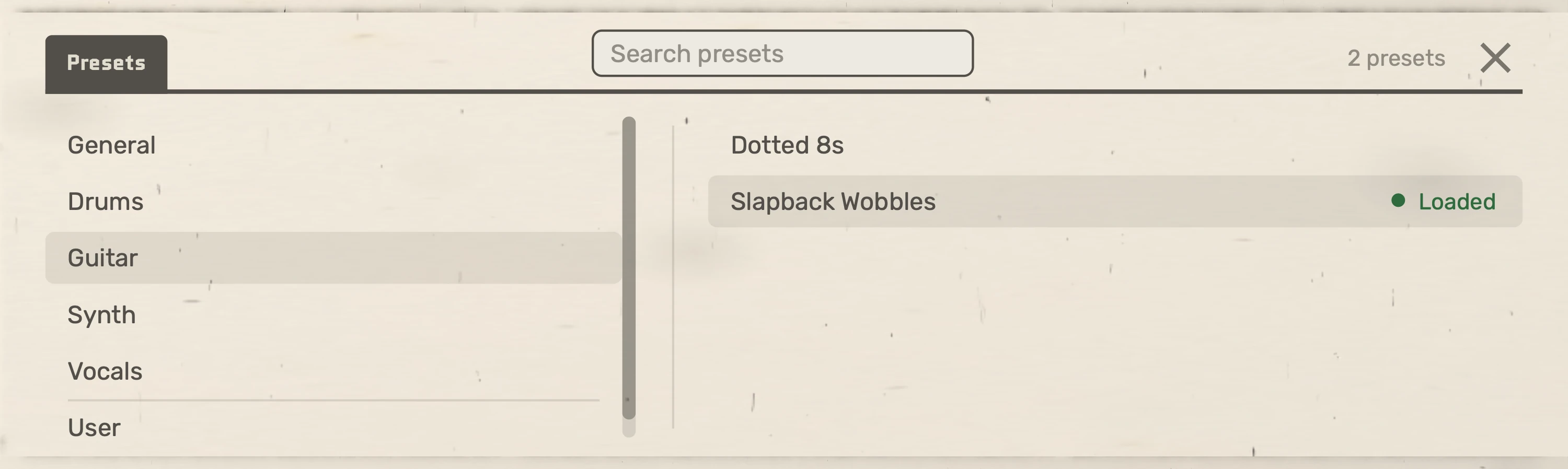
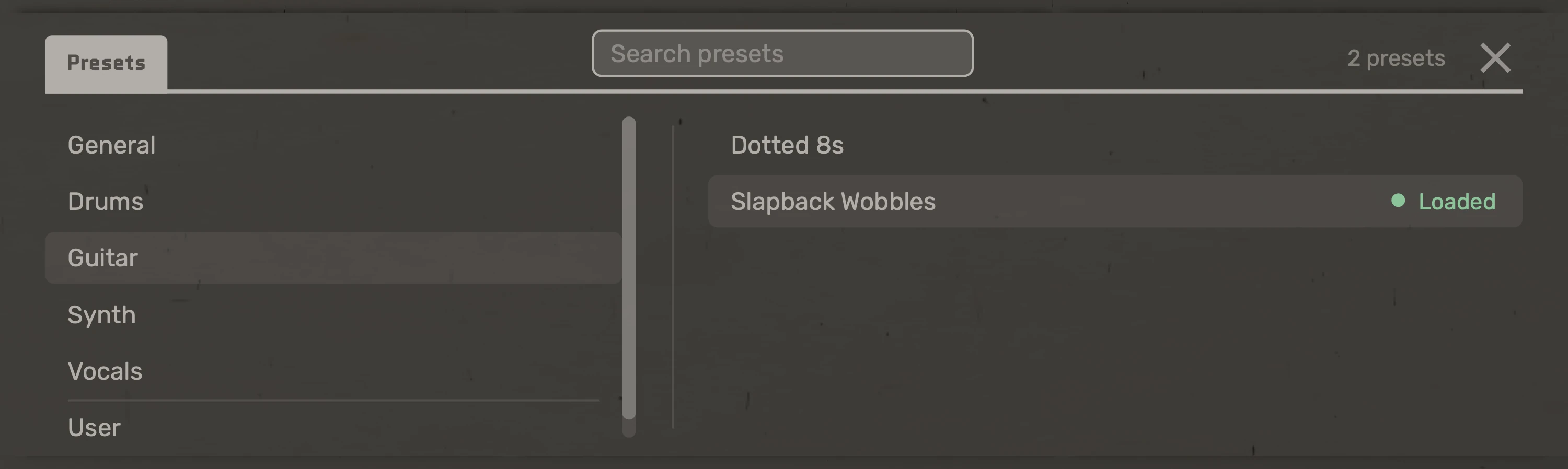
Click the preset name in the header to open the preset browser. It opens on the folder you left it on, even after closing the plugin window. If a different preset has been loaded since, it opens on that preset's folder instead. The loaded preset is marked Loaded.
- Folders are on the left: the factory folders that come with Buckets, with General first, then User, which holds the presets you've saved.
- Presets in the selected folder are on the right. Default comes first, then the rest alphabetically. The count next to the close button shows how many are listed.
- Hover over a preset to read its description in the help bar along the bottom.
- Search presets finds presets in every folder, including User. You can also just start typing while the browser is open. Esc clears the search.
- Click a preset to load it. The browser closes as soon as it loads.
- To close the browser without loading anything, press Esc or use its close button.
The previous and next arrows in the header step through every preset in alphabetical order across all folders, starting with Default and wrapping round at either end.
Saving a preset
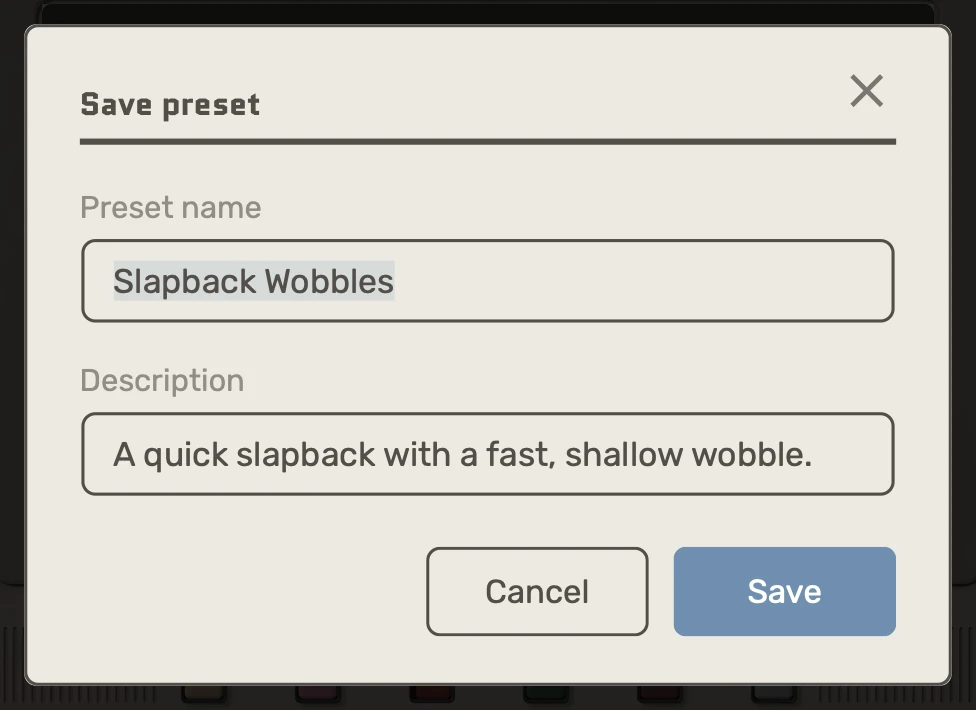
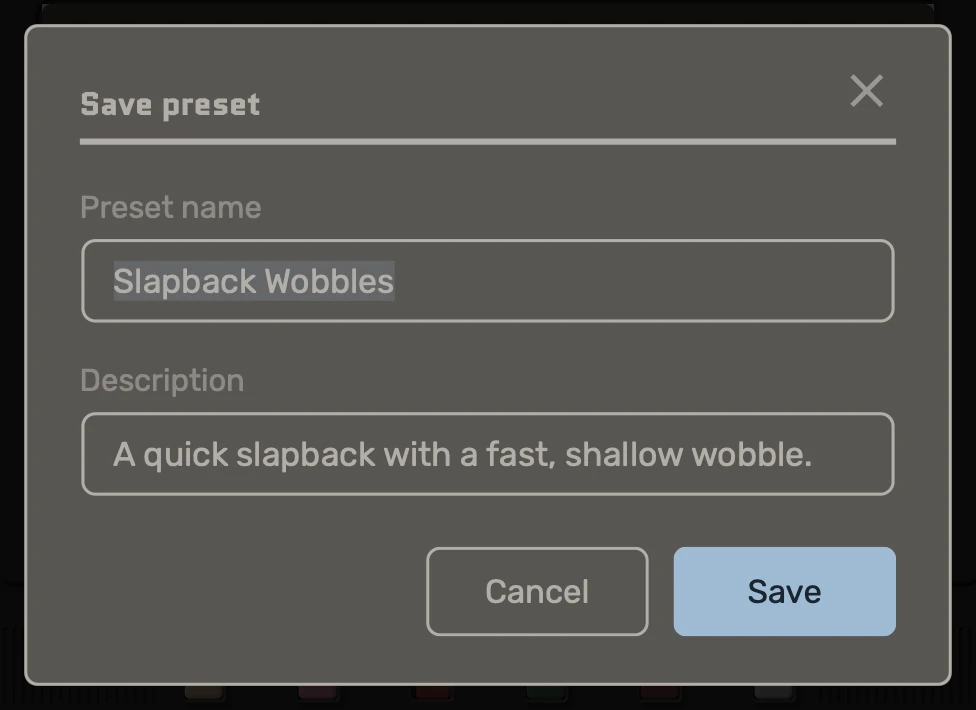
Click the save button in the header to open Save preset.
- Preset name starts with the name of the loaded preset. Change it to save a new preset, or keep it to update your copy.
- Description starts with the loaded preset's description. It shows in the help bar when you hover over the preset in the browser or its name in the header. You can leave it empty.
- Save (or Return) saves; Cancel (or Esc) closes without saving.
Presets you save go to User, so factory presets are never changed. If you save under the name of a factory preset, your version is in User and the original stays in its folder.
Replacing a preset
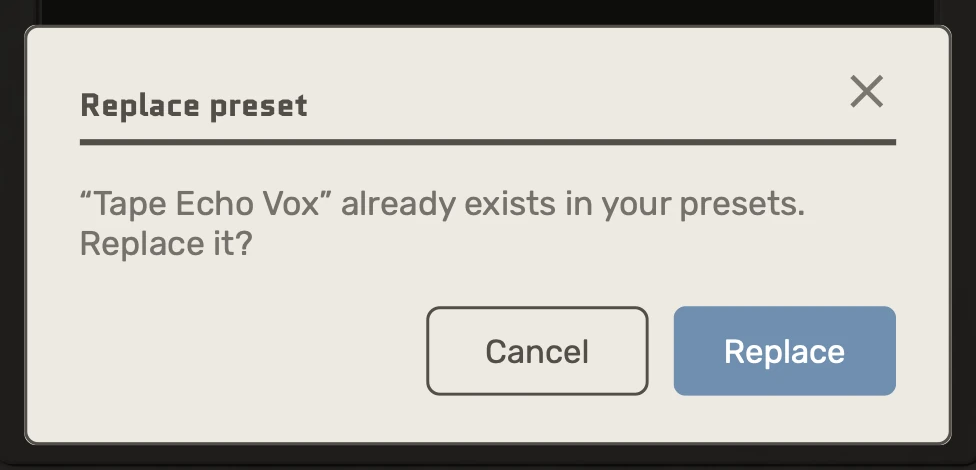
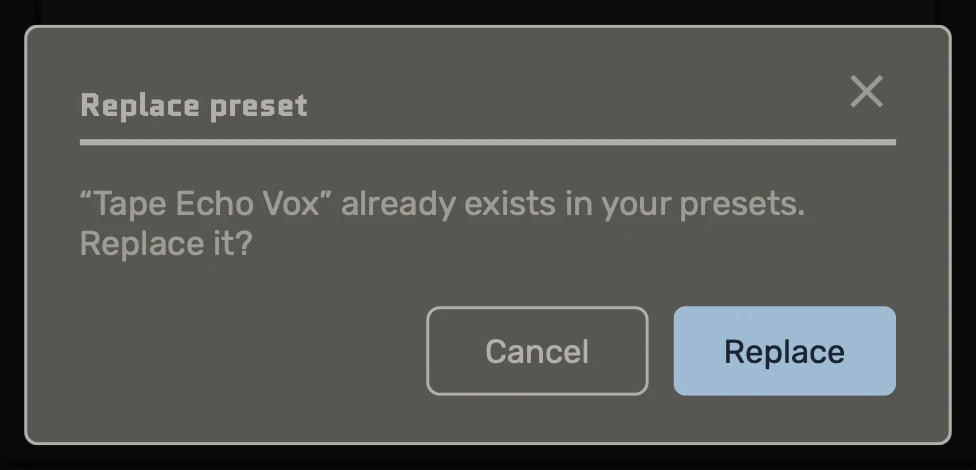
If one of your presets already has that name, the dialog says so under the fields and Save becomes Replace.
- Replace (or Return) saves over your preset.
- Save as copy keeps your preset and saves this one under the next free number, such as Tape Echo Vox 2.
- To save a new preset instead, change the name. The note goes away and the button goes back to Save.
Deleting a preset
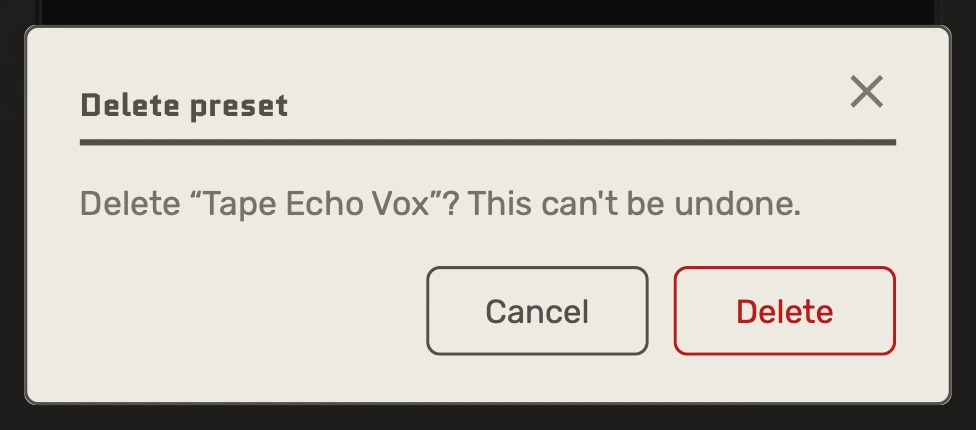
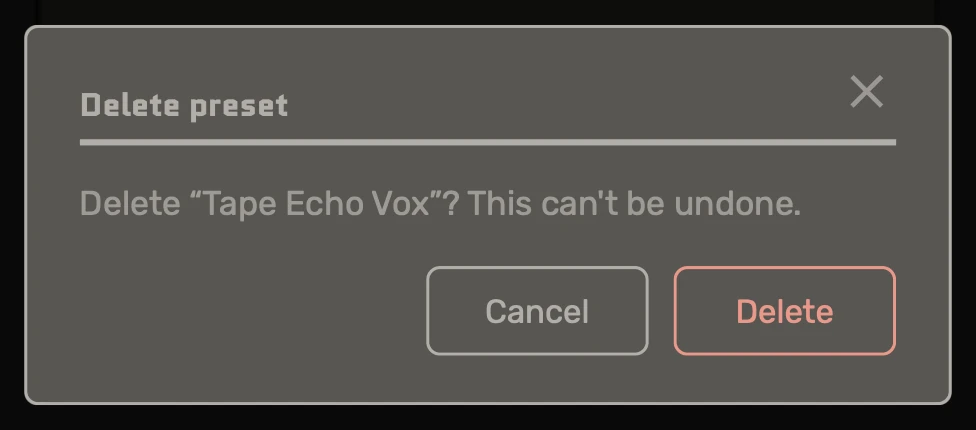
Load one of your own presets and click the delete button in the header, then confirm with Delete. The preset file is removed from disk. Factory presets can't be deleted: the button is dimmed while one is loaded.
What a preset stores
A preset stores the sound: the time, character, signal, modulation and ducking settings. Visualizer pad assignments have their own presets (see Visualizer).
Loading a preset leaves these as they are:
- Bypass, Freeze, and the Mod and Duck bypass buttons
- PRE, GRIT and HQ
- Pedal mode and Link
- Mix, while Mix lock is on
- The light or dark theme
Double-click a knob or slider (or Option-click it) to return it to the value it has in the loaded preset.
Where presets are stored
Each preset is an .xml file. Factory presets sit in one folder on disk per browser folder; your presets sit directly in your preset folder. To back up or share presets, copy the files; presets copied into your preset folder appear under User the next time the browser opens.
| Platform | Your presets | Factory presets |
|---|---|---|
| macOS | ~/Library/Application Support/Reasonable Audio/Buckets/Presets |
/Library/Application Support/Reasonable Audio/Buckets/Presets |
| Windows | %APPDATA%\Reasonable Audio\Buckets\Presets |
%PROGRAMDATA%\Reasonable Audio\Buckets\Presets |
| Linux | ~/.config/Reasonable Audio/Buckets/Presets |
~/.local/share/Reasonable Audio/Buckets/Presets |
On iOS, factory presets are built into the app.